Bảo vệ tệp đính kèm email với IRM
Mã hóa và quản lý quyền truy cập vào tệp đính kèm email, đảm bảo mọi thông tin trao đổi đều an toàn và bảo mật tuyệt đối.


Bảo mật tệp đính kèm email dễ dàng
SecureMail là tiện ích mở rộng của Gmail và Microsoft Outlook, giúp bảo mật tệp đính kèm email bằng công nghệ quản lý quyền thông tin (IRM). Tệp đính kèm được thay thế bằng liên kết an toàn, chỉ cho phép người nhận được ủy quyền xem hoặc tải xuống. SecureMail giúp việc gửi tệp an toàn qua email trở nên nhanh chóng và dễ dàng hơn.
The Easiest Way to Send Secure Files
SecureMail is an add-in for Gmail and Microsoft Outlook that secures email attachments using information rights management (IRM) technology. Using SecureMail is as easy as sending an email attachment; just select your files, set security settings such as whether to allow download, and you’re done. Attachments are replaced by a secure link where authorized recipients can view or download your files. You can track when your files have been viewed or downloaded, and revoke access if necessary on your SecureMail web console.
You can start using SecureMail for free, or if you need to send larger files or lots of files, we have a selection of packages to fit your needs. Just install SecureMail from the Google Chrome Store or Microsoft AppSource, then sign up for an account, or click on the link below.
Start using SecureMail for free – no credit card needed
Vì sao chọn SecureMail?
Bảo mật tệp đính kèm email
- Chỉ những người nhận email được chỉ định mới có thể truy cập tệp của bạn.
- Lựa chọn giữa chế độ tải xuống hoặc chỉ xem trực tuyến.
- Tệp đã tải xuống được bảo vệ tuyệt đối, ngăn sao chép hoặc chia sẻ trái phép, đồng thời có thể thu hồi quyền truy cập bất cứ lúc nào.
- Có thể thêm watermark khi xem trực tuyến.
- Hỗ trợ các tệp PDF, Word, Excel và PowerPoint.
Theo dõi và kiểm soát
- Giám sát ai đang xem hoặc tải xuống tệp của bạn.
- Thu hồi quyền truy cập tệp bất cứ lúc nào
- Thu hồi quyền truy cập các tệp đã tải xuống
Gửi tệp dung lượng lớn
- Gửi tệp lên đến 1GB.
- Phù hợp để gửi video, thuyết trình và các tệp lưu trữ.
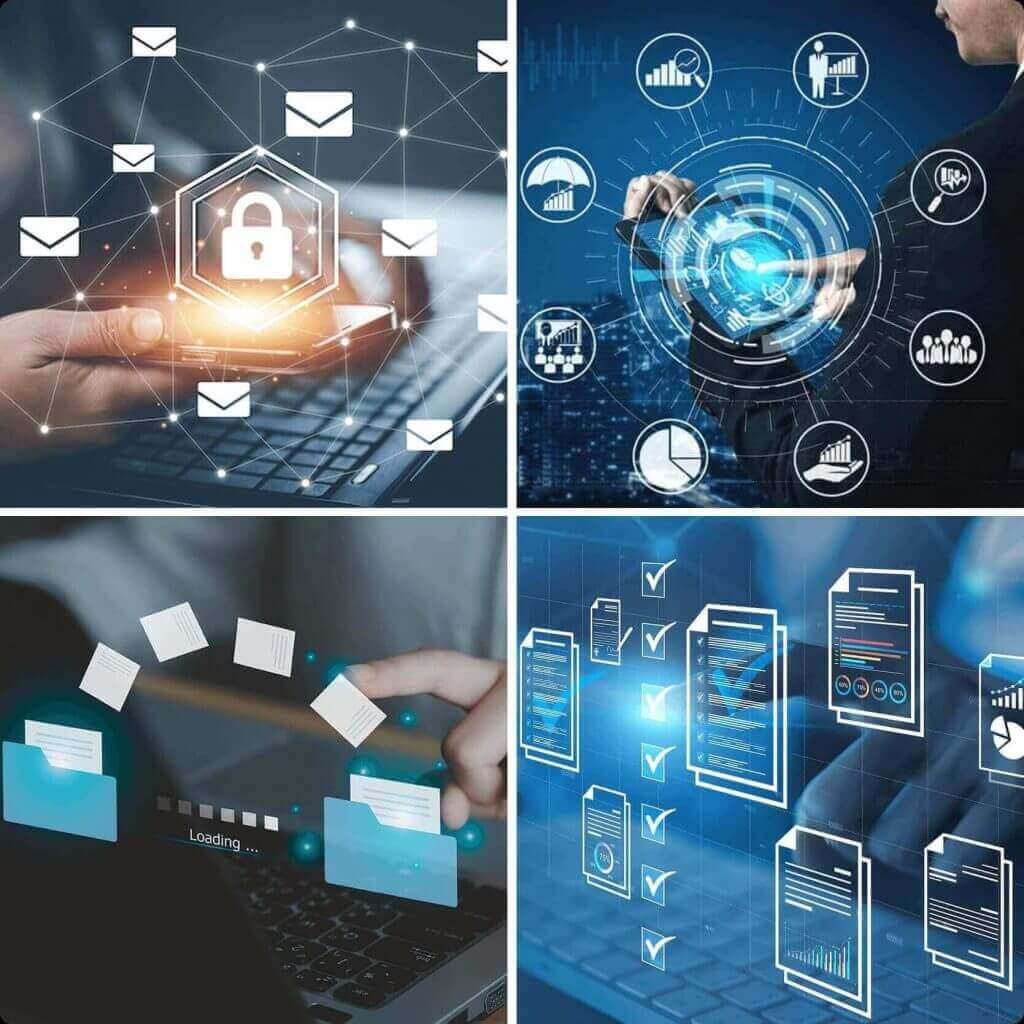
Tính năng bảo mật nội dung
Chống sao chép nội dung
689Cloud mã hóa toàn bộ tập tin và áp dụng xác thực đám mây để ngăn chặn việc chia sẻ trái phép. Với tài liệu Microsoft Office, giải pháp của chúng tôi còn nâng cao bảo mật bằng cách vô hiệu hóa sao chép/dán và chặn chụp màn hình.
Giám sát tài liệu
Mọi lượt truy cập đều được giám sát — từ xem trực tuyến, tải xuống cho đến mở trên thiết bị — đảm bảo khả năng theo dõi toàn diện mọi tương tác với tài liệu.
Thu hồi quyền truy cập từ xa
Dễ dàng thu hồi quyền truy cập bất cứ lúc nào, kể cả sau khi tải xuống, đảm bảo chia sẻ tài liệu doanh nghiệp luôn an toàn tuyệt đối.
Trình xem trực tuyến an toàn
Thiết lập tài liệu ở chế độ chỉ xem trực tuyến, ngăn tải xuống và vô hiệu hóa công cụ phát triển trình duyệt, đảm bảo cộng tác trực tuyến luôn an toàn tuyệt đối.
Xác thực hai lớp
Tất cả các tài liệu đều được bảo vệ bằng xác thực hai lớp (2FA) hoặc đăng nhập tài khoản, ngăn chặn việc xem trái phép.
Kiểm soát quyền in ấn
Vô hiệu hóa chức năng in ấn — đảm bảo an ninh tuyệt đối cho tài liệu.
Hạn sử dụng tài liệu
Đặt ngày hết hạn cho tài liệu để chúng tự động không thể truy cập sau thời gian định sẵn, giúp bảo vệ dữ liệu trực tuyến an toàn hơn.
Watermarks
Watermark hiển thị email và thời gian truy cập của người xem trên tài liệu, ngăn chặn việc chụp ảnh hoặc quay màn hình trái phép.
Hướng dẫn cài đặt và sử dụng SecureMail
Cài đặt và sử dụng SecureMail cực kỳ đơn giản. Nhấp vào bên dưới để khám phá cách bảo vệ và theo dõi các tệp đính kèm email của bạn thật dễ dàng.
How it Works:
- Install the SecureMail Add-in – The add-in is available for free on the Google Chrome Store for Gmail, and on Microsoft AppSource for Outlook.
- Attach as usual – The sender clicks on the SecureMail icon and attaches files through the SecureMail add-in, just like a normal email attachment.
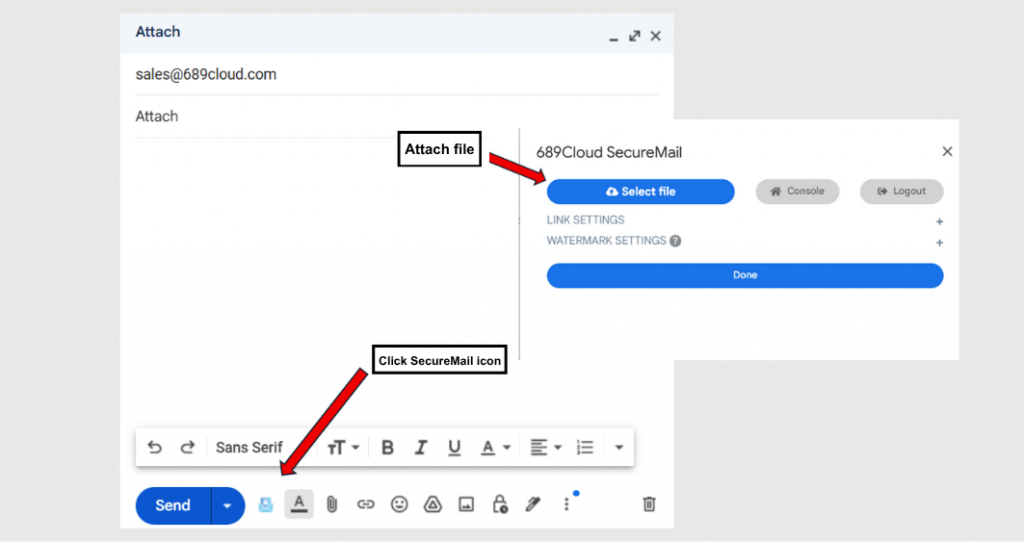
3. Set Permissions – Permissions such as downloading and printing can be set.
4. Automatic encryption – The files are encrypted and uploaded securely to the cloud.
5. Secure link – A link to the document is embedded in the email body.
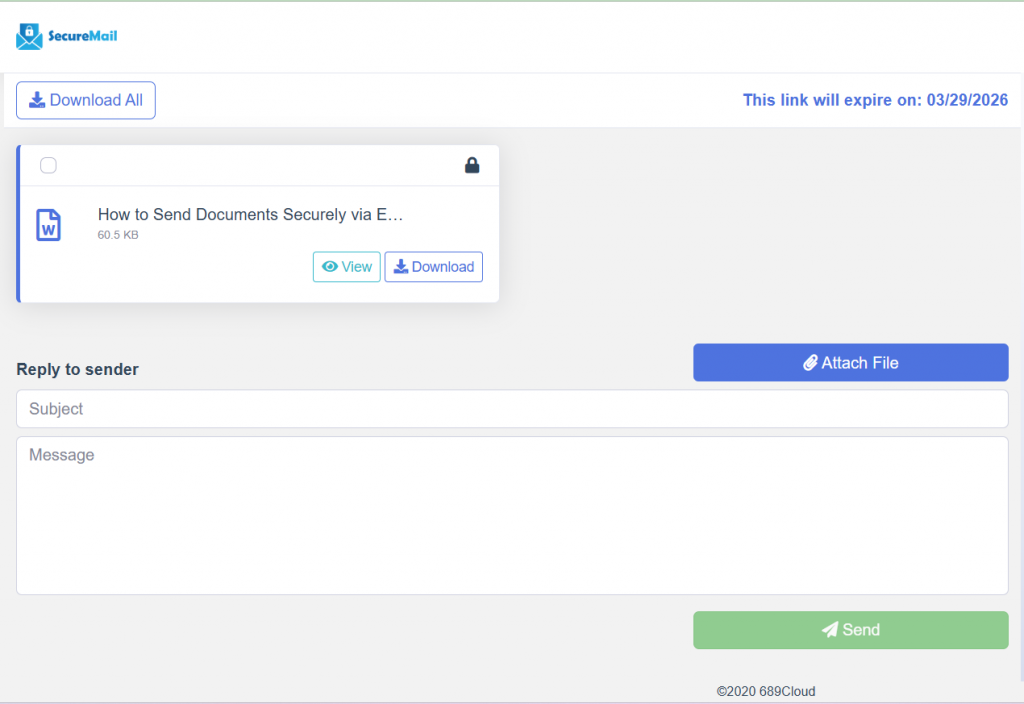
6. Recipient authentication – The recipient clicks the link and is verified via their email address and a one-time PIN (OTP).
7. Controlled access – Based on the sender’s permissions, the recipient can either:
. View the file securely in their browser (without downloading), or
. Download it with tracking and restrictions still in place
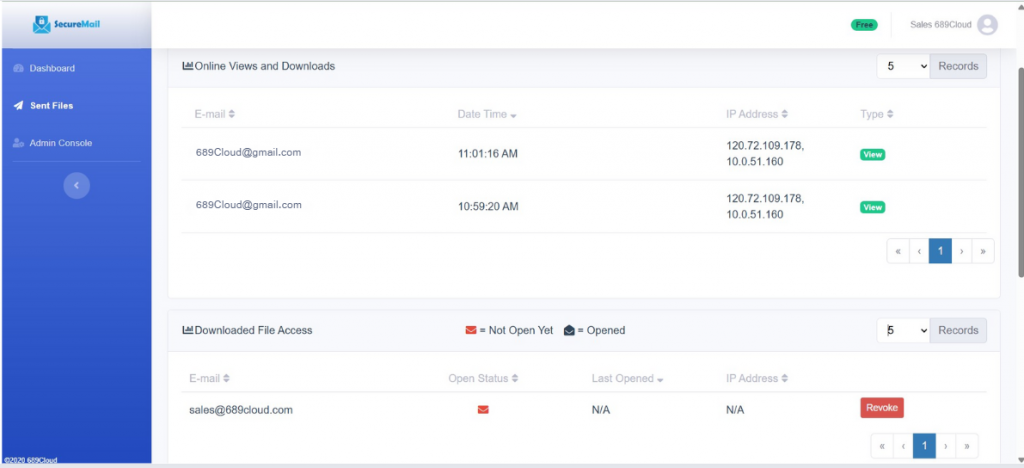
8. Track and Manage – The sender can check who has accessed sent files, stop access, and revoke access to downloaded files through the SecureMail Dashboard.
Benefits:
- Simplicity for senders – No extra steps beyond attaching a file.
- Ease for recipients – No special software required, access via browser.
- Strong security – Encryption, access control, traceability, and post-sending control in one seamless solution.
SecureMail Frequently Asked Questions (FAQ)
- Do recipients need to install any software?
No. They just authenticate via their email and OTP. Documents open securely in the browser. Downloadable PDF files can be opened with Adobe Acrobat Reader. - Can recipients forward the email?
Yes, but forwarded recipients cannot open the file unless the sender grants them access. - What happens if someone screenshots the document?
Print Screen and screen capture tools are disabled. Dynamic watermarks also deter photos. - Can I revoke a file after sending it?
Yes. At any time via the SecureMail dashboard. - What file formats are supported?
Common business file types like PDF, Word, Excel, PowerPoint, and images. - What happens if the download option is disabled?
Recipients can only view online. They cannot download, copy, or extract the content.