Attach as usual
Use the SecureMail add-in within Gmail or Outlook and attach files the same way your team already works.
Protect confidential files sent through Gmail or Microsoft Outlook. 689Cloud SecureMail replaces risky email attachments with secure links, so only authorized recipients can access your documents.
Track file activity, set permissions, add expiry dates, and revoke access even after sending.

Secure email attachments for financial records, tax documents, legal files, business plans, medical records, and other sensitive and confidential documents.
Email is still the easiest way to send business files, but ordinary attachments are hard to control after they leave your outbox.
Once a traditional attachment is sent, it can be forwarded, downloaded, copied, or re-shared without your knowledge or control. SecureMail reduces that risk by replacing attachments with secure links to encrypted, IRM-protected files in the cloud. These links can only be accessed by authorized recipients who are authenticated using multi-factor authentication.
With SecureMail, you can send files securely by email while keeping control over who can access them, what they can do with them, and how long they remain available — all while maintaining the same simple workflow of email.
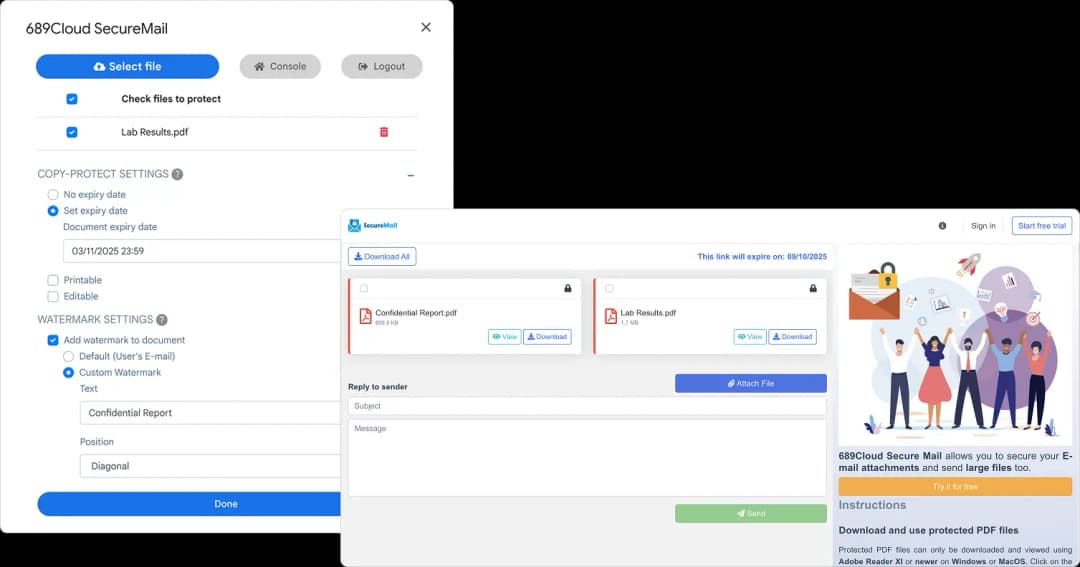
Instead of sending the original file as a standard attachment, SecureMail uploads the file securely and inserts a protected link into your email. Recipients authenticate before accessing the file, and you can track activity, set expiry dates, and revoke access after sending.
Use the SecureMail add-in within Gmail or Outlook and attach files the same way your team already works.
SecureMail encrypts the file, uploads it securely, and inserts a secure link for email attachments into the email body.
Recipients authenticate before access. You can track activity, expire links, and revoke access later.
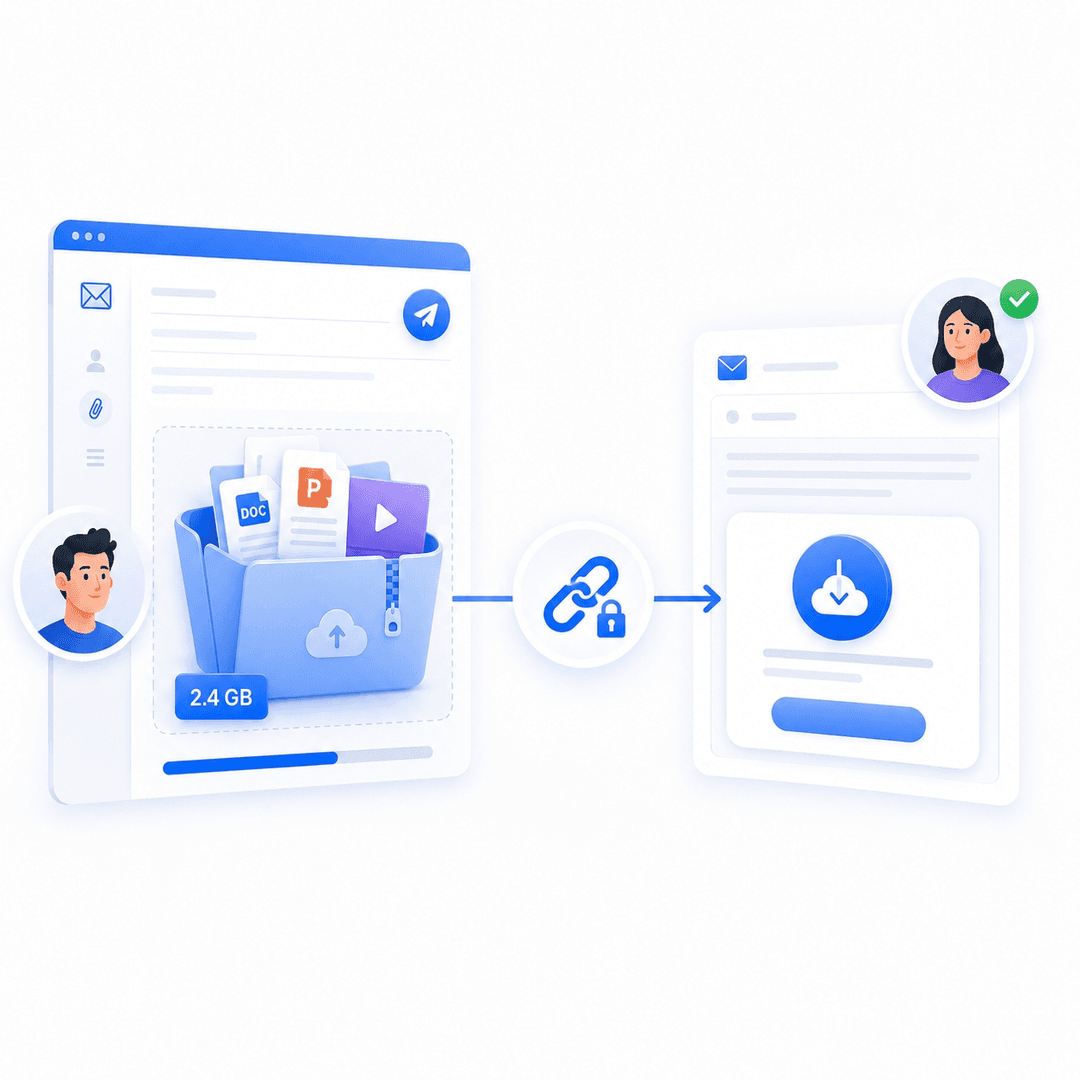
SecureMail’s key differentiator is Information Rights Management. For supported file types, protection can follow the file after sending, helping you control access, track usage, restrict copying or printing, apply watermarks, and revoke access even after a file has been downloaded.
Authorize specific recipients instead of relying on email forwarding rules.
Track online views, downloads, and local file openings.
Set view-only, download, print, expiry, and watermark policies.
Stop access later, including downloaded protected files where supported.
SecureMail allows you to send large files securely by email using protected links instead of oversized attachments. Your recipient receives a secure link, while you keep control over file access.
Ordinary attachments are difficult to manage after sending. SecureMail gives you post-sending control over confidential files.
Only designated email recipients can access your files.
Allow recipients to view files securely in the browser without downloading them.
Choose whether recipients can download protected files.
Track online views, downloads, and local file openings.
Revoke access at any time, even after files have been downloaded.
Set files to become inaccessible after a certain date.
Display the viewer’s email address and date/time to discourage leaks.
Restrict printing, copying, and screen capture for supported file types.
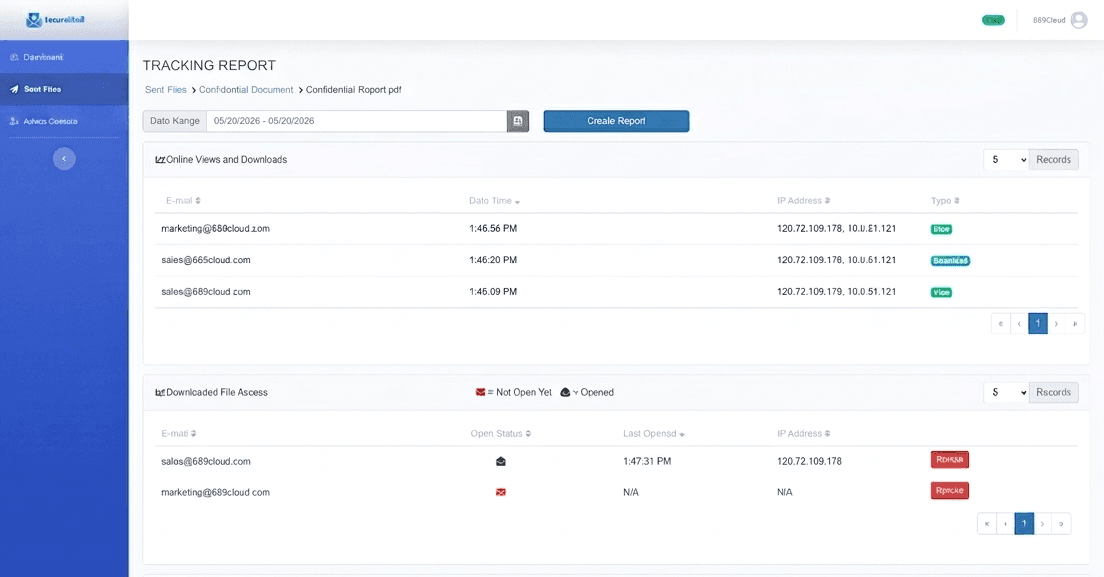
SecureMail keeps the familiar email workflow while adding secure links, IRM protection, recipient authentication, tracking, and revocation.
Install the SecureMail add-in for Gmail or Microsoft Outlook.
Click the SecureMail icon and select the files you want to send, just like adding a normal email attachment.
Choose whether recipients can view online, download, print, or access the file after a certain date.
SecureMail encrypts the file, uploads it securely, and adds a protected link to your email.
The recipient opens the link and verifies their identity before accessing the file.
Use the SecureMail dashboard to see who accessed the file, stop access, or revoke downloaded files.
SecureMail is designed for organizations that need secure file sharing without forcing employees to change how they communicate.
It is especially useful for teams that regularly send confidential documents to clients, partners, vendors, patients, employees, or outside advisors.
Send contracts, case files, due diligence documents, client records, and confidential work product.
Send tax documents, statements, spreadsheets, reports, invoices, and financial records securely.
Send medical reports, patient documents, referral files, and healthcare-related documents with stronger access control.
Send specifications, technical documents, product information, manuals, and design files.
Send employee records, compensation files, board materials, policies, and confidential internal documents.
Use SecureMail as part of a broader secure document sharing strategy for sensitive business files.
SecureMail adds secure links, multi-factor authentication, IRM protection, tracking, expiry, and revocation to the email workflow.
| Capability | Ordinary Email Attachments | 689Cloud SecureMail |
|---|---|---|
| Send files by email | Yes | Yes |
| Replace attachments with secure links | No | Yes |
| Recipient-only access | No | Yes |
| View-only option | No | Yes |
| Track views and downloads | No | Yes |
| Revoke access after sending | No | Yes |
| Revoke downloaded files | No | Yes, for protected files |
| Add expiry dates | No | Yes |
| Add dynamic watermarks | No | Yes |
| Send large files by email | Limited | Up to 1GB |
| IRM protection | No | Yes |
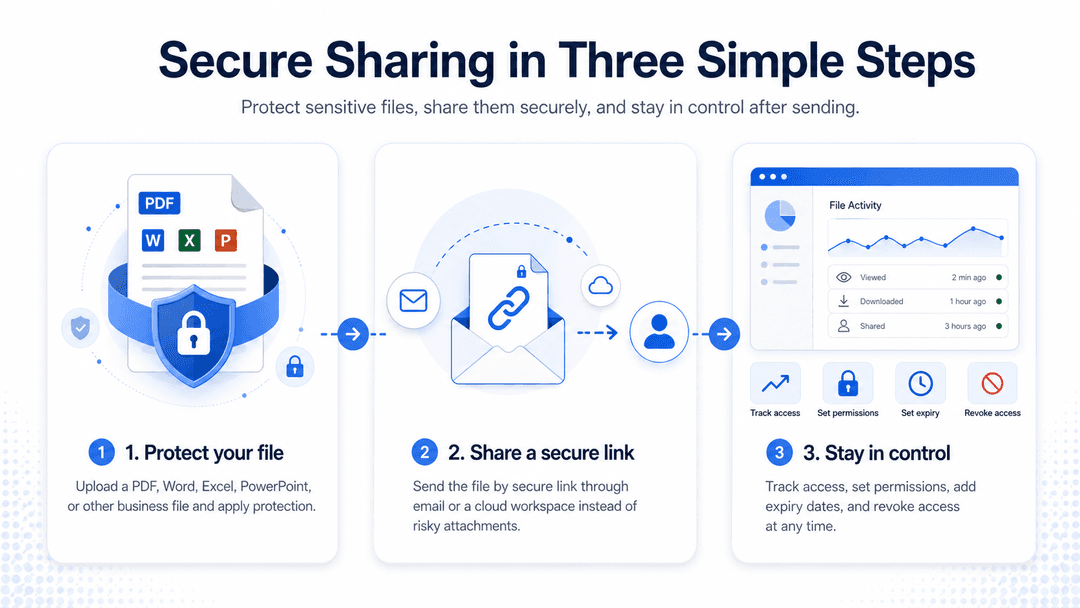
The safest approach is to avoid sending the original file as a standard attachment. SecureMail replaces attachments with secure links, verifies recipients, and lets you track, expire, or revoke access after sending.
Install SecureMail for Gmail or Outlook, attach files through SecureMail, set permissions, and send the email. SecureMail encrypts the files and inserts a secure link for email attachments so only authorized recipients can access them.
Use SecureMail to protect documents with recipient-only access, encryption, IRM protection, view/download permissions, expiry dates, tracking, and remote revocation.
Send confidential documents using a secure link instead of a standard attachment. This helps prevent unauthorized access if the email is forwarded or the recipient’s mailbox is compromised.
Yes, but forwarded recipients cannot access the protected file unless the sender authorizes them.
Yes. SecureMail allows senders to revoke access through the SecureMail dashboard.
Yes. SecureMail supports sending large files up to 1GB.
For online viewing, recipients can authenticate and view files through a secure browser-based viewer. Downloaded protected file access may depend on file type and security settings.
Yes. SecureMail tracks file activity, including online views, downloads, and local openings.
SecureMail supports common business file types, including PDF, Word, Excel, PowerPoint, images, videos, archives, and other large business files. Healthcare-related files, including DICOM, are supported where available.
Protect confidential documents without changing how your team works. SecureMail helps you replace risky attachments with secure links, track file activity, set expiry dates, and revoke access after sending.